

Introduction
The strikethrough Google Docs feature is a simple yet powerful formatting tool that allows users to draw a line through text. It is commonly used to indicate deleted content, completed tasks, or edits in a document without removing the original text.
Whether you are a student, writer, editor, or professional, understanding how to use strikethrough effectively can improve your workflow and document clarity. In collaborative environments, this feature becomes even more useful as it helps track changes and communicate updates clearly.
In this comprehensive guide, we will explore everything about strikethrough Google Docs, including how to use it, shortcuts, benefits, best practices, and common mistakes.
What is Strikethrough Google Docs and Why It Matters
The strikethrough Google Docs function is a text formatting option that visually crosses out selected words or sentences. Instead of deleting content permanently, it allows you to keep a visible record of edits.
This feature is particularly important in:
- Editing and proofreading
- Task management
- Collaborative writing
- Draft revisions
By using strikethrough, users can maintain transparency while making changes.
How to Apply Strikethrough Google Docs Step by Step
Using strikethrough Google Docs is very easy. Follow these steps:
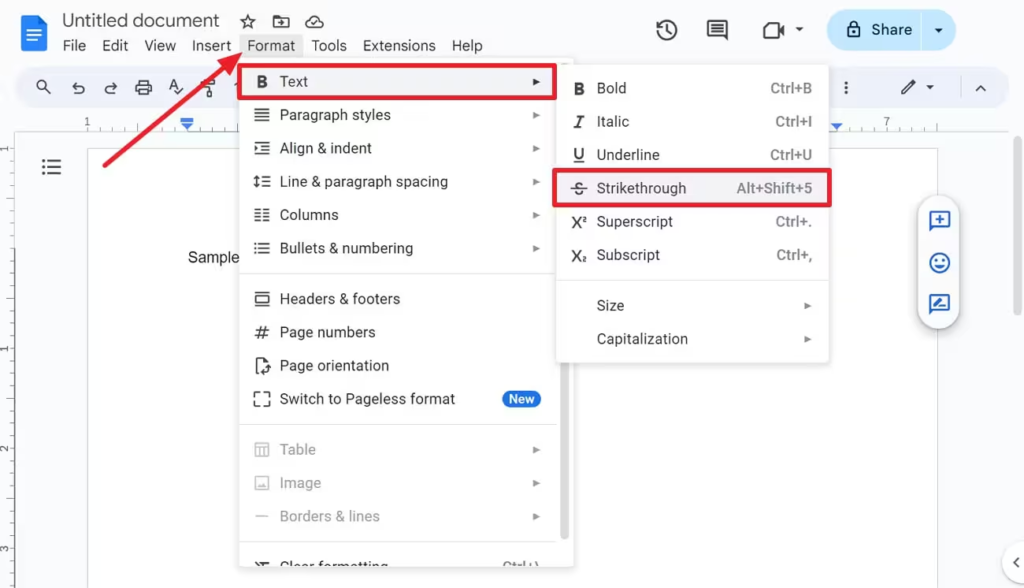
Method 1: Using the Format Menu
- Open your document in Google Docs
- Select the text you want to edit
- Click on Format in the top menu
- Go to Text
- Click on Strikethrough
The selected text will now have a line through it.
Keyboard Shortcut for Strikethrough Google Docs
One of the fastest ways to apply strikethrough Google Docs is by using keyboard shortcuts.
Shortcuts:
- Windows / Chromebook:
Alt + Shift + 5 - Mac:
Command + Shift + X
Using shortcuts saves time and improves productivity, especially when working on large documents.
How to Remove Strikethrough Google Docs
If you want to remove the formatting, the process is just as simple.
Steps to Remove:
- Select the strikethrough text
- Go to Format > Text > Strikethrough
- Click again to remove it
Alternatively, you can use the same keyboard shortcut to toggle it off.
When to Use Strikethrough Google Docs Effectively
The strikethrough Google Docs feature can be used in various scenarios:
Editing and Proofreading
Editors use it to show removed or replaced text without deleting it completely.
Task Management
It helps mark completed tasks in lists.
Collaboration
Team members can suggest changes without losing original content.
Writing Drafts
Writers can experiment with edits while keeping earlier versions visible.
Benefits of Using Strikethrough Google Docs
Using strikethrough Google Docs offers several advantages:
Improves Clarity
Readers can see what has been changed or removed.
Saves Time
No need to rewrite content repeatedly.
Enhances Collaboration
Multiple users can track edits easily.
Maintains Version History
Important information is not lost.
Strikethrough Google Docs vs Deleting Text
Many users wonder whether to delete text or use strikethrough.
| Feature | Strikethrough Google Docs | Deleting Text |
|---|---|---|
| Visibility | Keeps text visible | Removes text completely |
| Editing | Reversible | Not easily reversible |
| Collaboration | Better | Limited |
Using strikethrough is ideal when you want to preserve context.
Formatting Tips for Strikethrough Google Docs
To get the best results from strikethrough Google Docs, follow these tips:
Combine with Bold or Italics
Highlight important edits by combining formatting styles.
Use Consistently
Apply it uniformly across the document.
Avoid Overuse
Too much strikethrough can make text hard to read.
Use for Specific Purposes
Only apply it where necessary, such as edits or completed tasks.
Strikethrough Google Docs in Collaborative Work
In team environments, the strikethrough Google Docs feature becomes even more valuable.
Use Cases:
- Tracking changes in shared documents
- Suggesting edits without deleting content
- Reviewing drafts
- Managing team tasks
When combined with comments and suggestions, it creates a powerful collaboration system.
Common Mistakes in Strikethrough Google Docs
While using strikethrough Google Docs, avoid these common mistakes:
Overusing the Feature
Too many crossed-out words can confuse readers.
Not Explaining Changes
Always provide context when making edits.
Mixing with Other Formatting Excessively
Too many styles can reduce readability.
Forgetting to Remove Unnecessary Text
Clean up final drafts before publishing.
Advanced Usage of Strikethrough-Google Docs
Advanced users can take strikethrough-Google Docs to the next level.
Combining with Comments
Add comments to explain why text is crossed out.
Using Suggestion Mode
Instead of manual strikethrough, use suggestion mode for edits.
Integration with Workflow
Use it in content planning, editing, and review stages.
Strikethrough Google Docs on Mobile Devices
You can also use strikethrough-Google Docs on mobile apps.
Steps:
- Open Google Docs app
- Select text
- Tap the formatting icon (A)
- Look for strikethrough option
Note: The availability may vary slightly depending on your device.
and Productivity Benefits of Strikethrough-Google Docs
Although strikethrough Google Docs does not directly impact rankings, it improves content quality and workflow efficiency.
Indirect SEO Benefits:
- Better content editing
- Improved readability
- Enhanced collaboration
- Faster content production
All these factors contribute to better-performing content.
Best Practices for Strikethrough-Google Docs
Follow these best practices to use strikethrough-Google Docs effectively:
Keep Documents Clean
Remove unnecessary strikethrough before finalizing.
Use in Draft Stage
Apply it mainly during editing and revision.
Maintain Readability
Ensure text remains easy to understand.
Communicate Clearly
Explain edits when working in teams.
Strikethrough-Google Docs for Students and Professionals
The strikethrough-Google Docs feature is useful for both students and professionals.
For Students:
- Editing assignments
- Revising essays
- Organizing notes
For Professionals:
- Drafting reports
- Managing tasks
- Reviewing documents
Its versatility makes it suitable for various use cases.
Future of Strikethrough-Google Docs
As digital collaboration continues to grow, features like strikethrough Google-Docs will remain important.
Future improvements may include:
- Better mobile support
- Enhanced formatting options
- Improved integration with AI tools
Conclusion
The strikethrough-Google Docs feature is a simple but essential tool for editing, collaboration, and productivity. It allows users to make changes without losing original content, making it ideal for both personal and professional use.
By understanding how to apply, remove, and use it effectively, you can improve your document workflow and maintain clarity in your writing. Whether you are editing a draft, managing tasks, or collaborating with a team, mastering this feature will make your work more efficient and organized
